Aller au contenu
User guide

How to use
your porteJoie.

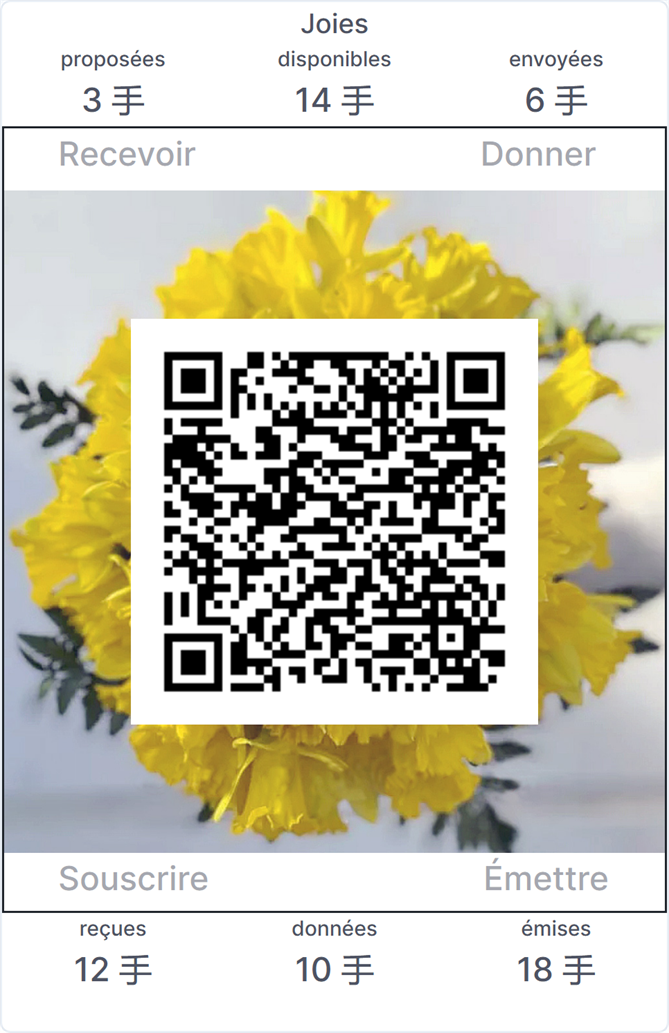
Six counters, six archives, six commands. Hover over any zone of the panel below and click to read what it does.
In the middle, a bunch of daffodils on which appears a QRCode.
If a party wants to donate a Joie to you, reading your code automatically opens this party's porteJoie if it exists, ready to give a Joie to your address.

Screenshot of the porteJoie panel in French — six counters around four commands and the central QR code, with the Profile, Help and Sign out commands below the panel.

Each counter position has two zones: the label on top opens an archive, the number below shows what the counter measures. The six commands act on your porteJoie.

Six archives

Click a label to open its archive.

The text labels on the porteJoie panel are clickable. Each one opens a different archive — pieces of history kept on your behalf.

Back

Joies

Click "Joies" to return to the main panel.

The main panel shows the five archive traces, the six counters, the four commands, and the central workspace — which by default displays your porteJoie QR code on a bouquet of daffodils.

Below the panel are the commands to view and change your profile and to sign out, together with the software version number.

↑ back to the panel

Archive

Pending

When you click the word "pending", you open the archive of all the Joies you have ever been offered.

You see the list of every Joie proposal you have received — those still awaiting your review (in red) and those already accepted (in black) — with for each:

— the number of Joies offered, — the date of the proposal, — the email address of the sender, or their address on pourlajoie.org.

An asterisk marks a first recipient for whom a Joie with a private effigy was issued — that is, a medal if the circulation of the effigy was limited.

↑ back to the panel

Archive

Available

When you click the word "available", you open the list of the effigies of the Joies you can give.

For each effigy, you see:

— the image of the effigy, — the number of Joies bearing this effigy, — the name of the effigy.

Selecting an effigy in this list starts a "Give" command restricted to Joies bearing that effigy, and to the corresponding number.

↑ back to the panel

Archive

Sent

When you click the word "sent", you open the archive of all the Joies you have ever sent.

You see the list of every Joie you have given — those still awaiting review by their recipient (in red) and those already accepted (in black) — with for each:

— the number of Joies sent, — the date of the sending, — the email address of the recipient, or their address on pourlajoie.org.

An asterisk marks a first recipient for whom a Joie with a private effigy was issued — that is, a medal if the circulation of the effigy was limited.

↑ back to the panel

Archive

Received

When you click the word "received", you open the archive of the effigies of every Joie you have accepted — whether you have since passed them along or not.

For each effigy you see:

— the number of Joies bearing this effigy, — the image of the effigy, — the name of the effigy.

An asterisk marks the reception of a private effigy — a medal if the circulation of the effigy was limited, or belonging to the group united by an unlimited private effigy.

↑ back to the panel

Archive

Given

When you click the word "given", you open the archive of the effigies of every Joie you have given and that has been accepted.

For each effigy you see:

— the number of Joies bearing this effigy, — the image of the effigy, — the name of the effigy.

↑ back to the panel

Archive

Issued

When you click the word "issued", you open the archive of the effigies of every Joie you have ever issued.

For each effigy you see:

— the number of Joies bearing this effigy, — the image of the effigy, — the name of the effigy.

An asterisk marks the issuance of a private effigy — a medal if the circulation of the effigy was limited, or attachment to the group united by an unlimited private effigy.

↑ back to the panel

Six counters

What each number tells you.

The numbers under each label tell you a quantity in real time. Hover them on the panel above to jump to the matching description.

Counter

Pending — counter

Gives the number of Joies offered to you by senders, but whose proposal you have not yet examined.

To process these pending proposals, click on "pending". They appear in red on the list.

↑ back to the panel

Counter

Available — counter

Gives the number of Joies that can be mobilised to thank someone whose service you wish to recognise.

This counter equals the sum of received and issued Joies, minus the sum of given and sent Joies.

↑ back to the panel

Counter

Sent — counter

Gives the number of Joies you have sent to recipients, but whose proposal has not yet been examined by them.

After examination by their recipient, the corresponding Joies are deducted from this count. Refused Joies become available again.

↑ back to the panel

Counter

Received — counter

Gives the number of Joies that have been offered by grateful senders and accepted by you.

View their personal messages by clicking on "pending". Contemplate their effigies by clicking on "received".

↑ back to the panel

Counter

Given — counter

Gives the number of Joies you have sent as a sign of gratitude and that have been accepted by their recipient.

View your personal messages by clicking on "sent". Contemplate their effigies by clicking on "given".

↑ back to the panel

Counter

Issued — counter

Gives the number of Joies you have issued after online subscription and sent as a sign of gratitude.

View your personal messages by clicking on "sent". Contemplate their effigies by clicking on "issued".

↑ back to the panel

Six commands

What you can do.

The four buttons around the central workspace let you act. The description below each one is exactly what happens when you click the button inside your porteJoie.

Command

Receive

Click RECEIVE to examine the latest proposal from a grateful sender.

It uses the central workspace to display:

— the email address of the sender, or their address on pourlajoie.org, — the number of Joies offered, — the personal message, — the accept / decline icons

↑ back to the panel

Command

Give

Click GIVE to offer available Joies to a recipient who deserves your recognition.

It uses the central workspace to display:

— the email address of the recipient, or their address on pourlajoie.org, — the number of Joies to offer, — the personal message, — the confirm / cancel icons

If the recipient does not yet have a porteJoie, the system creates a placeholder for them and sends an invitation by email.

If you want to choose the effigy of the Joies you give, first open the list of available Joies by clicking the word "available".

↑ back to the panel

Command

Subscribe

Click SUBSCRIBE to obtain the right to issue Joies. Each Joie requires one euro to be set aside in the reserve fund.

Your payment is processed through the association HelloAsso.

You may also transfer subscription rights to another user already registered on pourlajoie.org — simply enter their identifier (email address).

Your subscription rights include those pre-allocated to your private effigies plus the so-called "free balance" as shown on the ISSUE command page.

↑ back to the panel

Command

Issue

Click ISSUE to create new Joies from rights you have already subscribed.

Indicate the effigy the Joies will carry — private effigies appear at the top of your catalogue — then the identifier (email address or address on pourlajoie.org) of the first recipient(s) (copy-paste a list if needed), the number of Joies to send to each, and the message addressed to them.

For a private effigy, rights are first deducted from the balance allocated to that effigy when it was declared (minimum of 100). Every effigy can also be issued from your free balance, available once private-effigy allocations have been subtracted from the total

For a list of identifiers, present them one per line or use commas as separators.
The terms of an identifier of type firstName.lastName.suffix can be spelt as usual, nobiliary particles put in front. Diacritics will be removed, spaces, apostrophes etc… will be converted into dashes, e.g. :
René-François.de Chateaubriand.auteur
will automatically become rene-francois.de-chateaubriand.auteur

↑ back to the panel

Command

Profile

Click PROFILE to change your password and your display mode. If it was not done when you registered on pourlajoie.org, you can also declare an address of your own there. With an address of your own, by which you become known on pourlajoie.org, you can then change your email address and keep it confidential.

An address on pourlajoie.org has the form: firstname.lastname.suffix

— first and last name must follow the format of email addresses: no capitals, no diacritics or special characters except the hyphen, and spaces, apostrophes and parentheses are replaced by a hyphen, — the suffix makes the address unique in case of namesakes, while remaining easy to give out to potential donors.

Examples: emmanuel-theodose.de-la-tour-d-auvergne, henri.martin.prof87, jean.dupont.x25

Once declared, your address on pourlajoie.org cannot be changed — short of opening a new porteJoie.
↑ back to the panel

Command

Help

Click HELP to open this page. The number beside it is the version of your porteJoie.

That number is what you will be asked for if you report a problem: it says exactly which version you are running.

↑ back to the panel

Effigies

Public, private, permanent.

An effigy is the image and name a Joie carries — the person, place or value being honoured. Three kinds exist:

Public effigies

Available to anyone in the catalogue. Any porteJoie holder can issue Joies bearing them.

Private permanent effigies

Reserved for the issuer's use. A Joie issued with one keeps that effigy as long as it circulates.

Private limited effigies

Reserved for the first recipients only. Once those recipients pass the Joie along, the effigy reverts to a so-called substitution effigy, chosen by the declarant among those they have access to — by default Jean-Pierre Joussemet, in whose memory the project was created.

Open your porteJoie

Ready to use it?

If you have already created your porteJoie, open it directly in a separate window. Otherwise, the registration form is on the Register page.